Tjekliste til medarbejderens skrivebord for fleksibelt arbejde

Et skrivebord kan se ryddeligt ud og alligevel ikke fungere for den person, der bruger det. En lav skærm, manglende oplader eller ingen plads til hurtigt at lægge en taske forvandler hurtigt en delt arbejdsstation til en kilde til irritation. Denne tjekliste til opsætning af medarbejderes skrivebord hjælper teams med at skabe en arbejdsplads, der føles personlig, behagelig og klar til at præstere – uanset om dagen starter hjemme, i et bookbart skrivebordskvarter eller mellem kundemøder.
Målet er ikke at fylde hvert skrivebord med udstyr. Det er at give medarbejderne en pålidelig måde at ankomme, sætte op og arbejde godt på – med mindre visuel støj, bedre kropsholdning og færre glemte nødvendigheder. For arbejdspladsteams gør den konsistens det også lettere at understøtte politikker for skrivebordsdeling i praksis.
Start med et skrivebord, der er klar til brug
Et fleksibelt skrivebord skal være rent, ryddeligt og funktionelt, før en medarbejder ankommer. Det betyder mere end bare at fjerne gårsdagens kaffekop. Overfladen skal have nok fri plads til en bærbar computer, dokumenter og et skriveområde, mens fælles udstyr skal være til stede, fungere og være let at identificere.
Tjek at skrivebordet og stolen er rene, stabile og fri for efterladte kabler, papirer eller personlige genstande. Test strømforsyningen, før det bliver et problem under et opkald. Hvis arbejdspladsen bruger skærme, skal du sikre, at kabler er tilgængelige, og at skærmen kan justeres uden besvær.
Her føles standarder for ryddelige skriveborde enten hjælpsomme eller straffende. Et ryddeligt skrivebord fungerer bedst, når medarbejderne har et formålstjenligt sted til deres egne redskaber. Bærbare organisere, tasker og arbejdstasker gør overgangen enkel: personligt udstyr tages med af medarbejderen, mens den delte arbejdsstation forbliver klar til næste person.
Tjekliste til opsætning af medarbejderes skrivebord: det væsentlige
Den bedste opsætning understøtter den aktuelle opgave uden at skabe en fast, overudstyret arbejdsstation. Brug følgende tjek som en praktisk basis for hjemmekontorer, touchdown-områder og miljøer med skrivebordsdeling.
- Ryddelig arbejdsflade: Sørg for tilstrækkelig plads til en bærbar computer, notesbog og inputenheder. Fjern ubrugte tilbehør i stedet for at flytte rod fra den ene side af skrivebordet til den anden.
- Pålidelig strømforsyning: Sørg for en tilgængelig stikkontakt, passende opladerkabel og, hvor det er nødvendigt, en kompakt multiport-oplader. Kabler skal ligge sikkert væk fra gangarealer og ikke trække i enheder.
- Korrekt skærmhøjde: Placer den øverste tredjedel af den bærbare computers eller monitorskærm omkring øjenhøjde. Et laptopstativ er især nyttigt, når en medarbejder arbejder i længere perioder eller bruger et eksternt tastatur og mus.
- Støttende siddeplads: Juster stolens højde, så fødderne støttes, skuldrene kan slappe af, og underarmene hviler behageligt nær skrivebordshøjde. Hvis skrivebordet er fast, og stolen har begrænset justering, kan fodstøtte være nødvendig.
- Placering af tastatur og mus: Hold begge tæt nok på, så albuerne forbliver tæt på kroppen. Undgå at række over en skrivebordsmåtte eller arbejde med håndled bøjet opad.
- Brugbart lys: Placer skærmen i en ret vinkel i forhold til vinduer, hvor det er muligt, for at reducere blænding uden at lukke for naturligt dagslys. En arbejdslys kan forbedre fokus i mørkere områder, men det bør ikke reflektere direkte i skærmen.
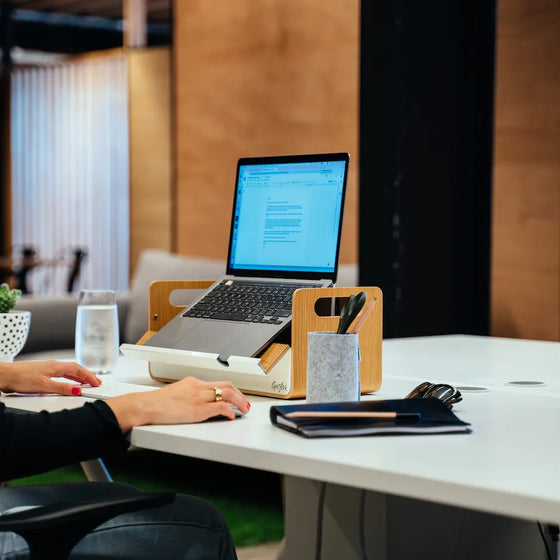
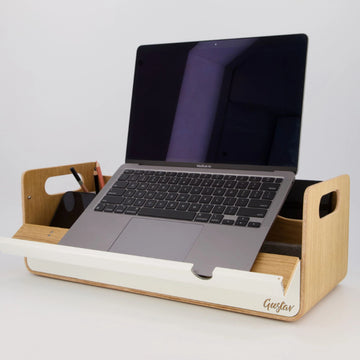
- Personlig organisering: Hold daglige redskaber samlet – oplader, hovedtelefoner, notesbog, penne, adaptere og adgangskort. En bærbar skrivebordsorganisator giver et defineret sted til hver genstand og gør pakning hurtigere.
- Klar til opkald: Tjek headsetopladning, kameraramme og baggrundsstøj, før et møde begynder. I et åbent kontor, book et passende fokus- eller mødelokale til fortrolige samtaler i stedet for at forsøge at løse privatliv ved skrivebordet.
Ikke alle medarbejdere har brug for alle genstande. En designer, der arbejder med en større skærm, kan have brug for mere skærmplads; en, der bevæger sig mellem korte møder, kan prioritere en kompakt, hurtig opsætning. Princippet er konsekvent: giv det, der understøtter arbejdet, og hold derefter skrivebordet fri for det, der ikke gør.
Indbyg ergonomi i de første to minutter
Ergonomi bør ikke afhænge af en lang justeringsritual. I et kontor med skrivebordsdeling har medarbejderne brug for en opsætning, der hurtigt kan gøres behagelig nok til at blive en daglig vane.
Start med stolens højde. Sæt dig tilbage i stolen, placer begge fødder på gulvet eller en fodstøtte, og lad lårene hvile nogenlunde parallelt med gulvet. Bring derefter arbejdet til medarbejderen i stedet for at læne medarbejderen mod arbejdet. Hæv en bærbar computer med et stativ, eller juster skærmen, så nakken forbliver neutral i stedet for at være bøjet nedad i timevis.
En opsætning med kun bærbar computer er acceptabel til korte, mobile sessioner. Til koncentreret arbejde skaber kombinationen af en hævet bærbar computer med et eksternt tastatur og mus en mere naturlig arbejdsstilling. Der er en afvejning: ekstra værktøjer skal bæres, opbevares og tilsluttes. Et gennemtænkt mobilt system holder disse genstande samlet, så ergonomisk støtte ikke bliver en ekstra logistisk byrde.
Skærmafstand betyder lige så meget som højde. Placer skærmen cirka en arms længde væk, og juster derefter for tekststørrelse og visuel komfort. Medarbejdere, der rutinemæssigt zoomer ind, læner sig frem eller strækker nakken, signalerer, at arbejdsstationen trænger til opmærksomhed.
Giv personlige redskaber et defineret sted
Den visuelle kvalitet af en arbejdsplads påvirker mere end udseendet. Et skrivebord spredt med kabler, løse penne og enheder skaber tøven i starten af dagen og forsinker oprydningen ved dagens slutning. I delte miljøer forstærkes denne friktion ved hver skrivebordsudskiftning.
En kompakt organiser etablerer en lille, pålidelig arbejdszone inden for en større delt indstilling. Den kan holde de nødvendigheder, medarbejderne har brug for for at arbejde med det samme, samtidig med at skrivebordsoverfladen holdes rolig. Når det er tid til at flytte, bliver den samme organiser pakkesystemet.
Dette er særligt værdifuldt for teams, der bruger skabe eller skifter mellem kontor og hjem. I stedet for at udlevere en samling af adskilte tilbehør, bør man overveje rejsen fra dør til skrivebord til afgang. Kan en medarbejder bære redskaberne komfortabelt? Kan de sætte op uden at lede efter kabler? Kan de efterlade skrivebordet klar til en anden på under et minut?
Gustav designer mobile arbejdspladsredskaber omkring denne praktiske rækkefølge: bær, sæt op, fokuser og kom videre. Resultatet er en arbejdspladsoplevelse, der føles målrettet uden at gøre hvert skrivebord identisk.
Planlæg for forskellige arbejdsformer
En enkelt skrivebordsopsætning kan ikke tjene alle opgaver lige godt. Fokusarbejde har gavn af en ryddelig overflade, støttende skærmposition og kontrolleret støjniveau. Samarbejde kan kræve en delt skærm, nem adgang til strøm og plads til to personer til at gennemgå materiale. Korte administrative opgaver kræver mindre udstyr og bør ikke optage de bedste ergonomiske arbejdsstationer hele dagen.
Arbejdspladsplanlæggere kan bruge denne sondring til at beslutte, hvad der hører til ved hvert skrivebord, og hvad der bør være tilgængeligt i nærheden. Faste skærme kan passe til tildelte fokusområder, mens bærbare laptopstativer og organisere tilbyder fleksibilitet på tværs af ikke-tildelte skriveborde. Den rette balance afhænger af længden af skrivebordssessioner, antallet af laptopbaserede medarbejdere og graden af bevægelse, der forventes i løbet af en typisk uge.
Hjemme gælder samme logik. Et spisebord kan fungere godt til en lejlighedsvis session, hvis belysning, stolens højde og skærmposition er i orden. Det bliver mindre egnet, når det forventes at understøtte hele arbejdsdage uden justering. Bærbare redskaber hjælper med at lukke det hul, men de kan ikke fuldt ud kompensere for en uhensigtsmæssig stol eller vedvarende blænding.
Gør oprydning til en del af opsætningen
En strategi for skrivebordsdeling er kun så stærk som overleveringen mellem brugere. Medarbejdere bør vide, hvor de skal returnere fælles perifert udstyr, hvordan de rydder personlige filer, og hvordan et klart skrivebord ser ud. Det handler ikke om at håndhæve en tom overflade for sin egen skyld. Det handler om at beskytte den næste persons mulighed for at starte godt.
Ved slutningen af en session skal personlige enheder frakobles, små redskaber lægges tilbage i organisatoren, mad og kopper tages væk, og fælles kabler efterlades tilgængelige. Tør overfladen af, når det kræves af arbejdspladsens retningslinjer. Hvis en skærm, stol eller stikkontakt ikke fungerer, skal det rapporteres med det samme i stedet for at efterlade et skjult problem til næste medarbejder.
En god skrivebordsopsætning er stille effektiv. Den fjerner de små forhindringer, der dræner opmærksomheden, før meningsfuldt arbejde er begyndt, samtidig med at den giver hver medarbejder en følelse af ejerskab, uanset hvor de arbejder. Design rutinen omkring det øjeblik, man ankommer, og arbejdspladsen vil føles klar længe før skærmen tændes.