What Makes a Desk Setup Ergonomic at Work?

A desk can look perfectly tidy and still ask too much of the body. The screen sits a little too low, the keyboard pulls the shoulders forward, and a laptop turns every video call into a gradual lean. What makes a desk setup ergonomic is not one expensive chair or a prescribed posture. It is a set of considered relationships between the person, their tools and the task in front of them.
For hybrid workers and shared-office teams, this matters even more. A comfortable setup cannot depend on having the same assigned desk every day. It needs to be easy to recreate, quick to adjust and calm enough to support focused work wherever it happens.
What makes a desk setup ergonomic?
An ergonomic desk setup allows you to work with a neutral, supported posture while keeping frequently used tools within easy reach. It should reduce unnecessary bending, twisting, gripping and reaching, without forcing the body into a rigid position for hours.
The keyword is adjustment. Bodies vary in height, proportions, eyesight, mobility and working habits. So do tasks. A workstation that suits a designer reviewing large-format visuals may need a different screen arrangement from one used for writing, calls and spreadsheets. Good ergonomics creates a sensible starting point, then makes small changes straightforward.
A useful setup supports three outcomes: the eyes can meet the screen without craning the neck; the hands can work without raised or collapsed shoulders; and the lower body has enough support and freedom to change position. Organisation matters because clutter can quietly undo all three. When a charger, notebook or phone pushes the keyboard out of place, posture follows the objects rather than the work.
Start with the screen, not the chair
Most desk discomfort begins with the display. When a screen is too low, the head naturally drops forward. When it is too high, the chin lifts and the shoulders tense. The practical aim is to position the top of the screen at, or slightly below, eye level, with the display roughly an arm’s length away. Text should be readable without leaning in.
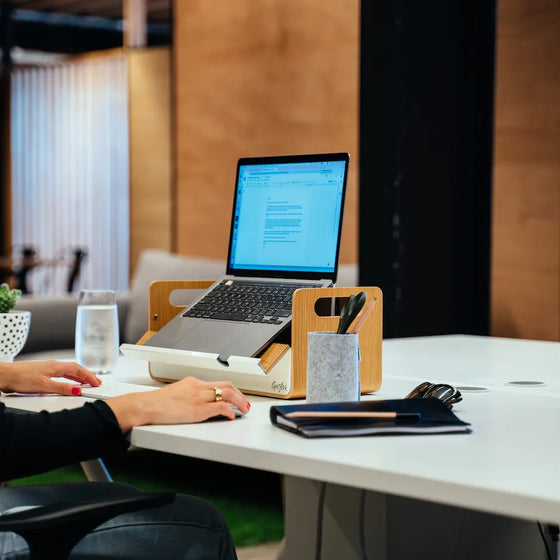
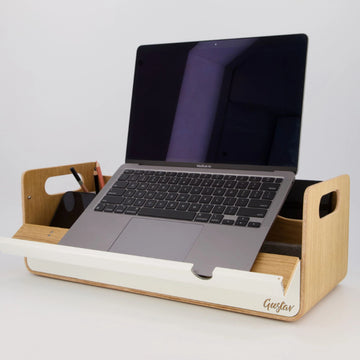
For a laptop-only setup, this often means raising the laptop. A stable laptop stand can bring the display to a more suitable height while creating space beneath it for a notebook or compact accessories. However, lifting a laptop changes the position of its built-in keyboard and trackpad, so an external keyboard and mouse are usually needed for longer work sessions.
Dual-screen work needs a different decision. If one display is used most of the time, place that screen directly in front of you and position the secondary screen close beside it. If both are used equally, centre the point where they meet. The goal is to avoid repeated neck rotation across the day, not to create a symmetrical-looking desk at the expense of comfort.
Glare also deserves attention. A well-positioned screen can still cause fatigue if a window or overhead light reflects across it. Move the display slightly, adjust blinds where available, or change the angle before increasing brightness. The simplest correction is often the most effective.
Set your chair and desk as one system
The chair and desk cannot be adjusted in isolation. Start by sitting back so that the lower back has support and both feet rest flat on the floor. Your hips should be level with, or slightly higher than, your knees. If your feet do not reach the floor after setting the correct chair height for the desk, use a footrest or another stable support rather than lowering the chair and compromising arm position.
Next, check the desk height. With shoulders relaxed, your elbows should rest close to your sides at roughly a right angle, or slightly more open, while typing. Wrists should remain broadly straight rather than bent upwards, downwards or sideways. If the desk is too high, raised shoulders are a common result. If it is too low, you may slump towards the work surface.
Fixed-height desks require more compromise than adjustable ones, particularly in desk-sharing environments. The most practical approach is to prioritise the relationship between chair height, keyboard height and screen height, then use portable tools to close the gaps. A laptop stand, compact keyboard and mouse can make a standard desk work far better for different users without changing the furniture itself.
Neutral does not mean motionless
There is no single perfect posture to hold all day. Even an impeccably adjusted chair becomes uncomfortable when used without movement. Ergonomic design should encourage small changes: shifting position, standing for a call, looking away from the screen or moving to another suitable work setting.
This is why a setup should feel supportive rather than restrictive. Armrests, for example, can help take weight from the shoulders, but only if they fit under the desk and do not prevent you from sitting close enough to the keyboard. If they cause you to reach forward, lower or adjust them where possible.
Keep input tools close and purposeful
Your keyboard and mouse should sit close enough that you do not reach from the shoulder. Place the keyboard directly in front of you, leaving enough room to rest the heels of your hands if that feels natural. Position the mouse alongside it, not stretched beyond the desk edge or crowded by a notebook, coffee cup or charging cable.
The right mouse depends on the work. A compact portable mouse suits mobile setups, while a larger model may feel more comfortable for long periods at a fixed desk. What matters is that it allows a relaxed grip and keeps the wrist in a natural position. A trackpad can work well for short tasks, but frequent precision work may be more comfortable with a separate mouse.
If you use a phone for regular calls, avoid repeatedly trapping it between shoulder and ear. Use headphones or a speakerphone where appropriate. These details can seem minor, yet repeated awkward positions are exactly what ergonomic planning is designed to reduce.
Organisation is an ergonomic tool
A clear desk is not merely a visual preference. It reduces unnecessary movement and protects the working positions you have already set. Keep daily tools within the primary reach zone: keyboard, mouse, water, notebook and any device used throughout the day. Less frequently used items can sit further away.
Cables should not dictate where equipment lands. A charger that is too short can pull a laptop to one side; a crowded power strip can force a user to sit off-centre. Thoughtful cable management and a portable organiser make it easier to place tools where they support the body, rather than where they happen to fit.
For desk-sharing teams, a personal workspace kit creates valuable consistency. Carrying the same essential equipment between home, office and project spaces means the screen, keyboard, mouse and accessories can be arranged in a familiar order within minutes. Gustav’s mobile workspace tools are designed around this principle: a composed setup that travels well, stores neatly and supports a more comfortable working position wherever the desk is.
Make shared desks easier to adjust
A desk-sharing strategy succeeds when people can settle in without hunting for adapters, clearing someone else’s cables or accepting a poor screen position for the day. Ergonomics should be built into the experience of arrival.
Provide clear desks, adjustable chairs and accessible power as the baseline. Then give users permission and practical means to personalise their station. Portable laptop stands, keyboards, mice and organisers are particularly useful because they bring consistency to furniture that cannot suit every body by default.
Workplace planners should also consider the full setting. A screen at the right height is less useful if the chair cannot be adjusted or if meeting zones force laptop work from low lounge seating for long stretches. Offer a range of work settings and make the intended use clear. Focus work, short touchdown tasks, calls and collaborative sessions place different demands on the body.
A quick ergonomic check before you begin
Before starting a longer session, take half a minute to look at the setup. Are your feet supported? Are your shoulders relaxed? Is the screen high enough to avoid looking down? Can you type and use the mouse without reaching? Is the desk clear enough for the tools you need most?
If the answer to one of these is no, adjust it before the work takes over. Small corrections are easier than trying to work around discomfort later.
The best ergonomic desk setup is not the one with the most equipment. It is the one that lets you arrive, arrange your tools with intention and spend the day focused on the work rather than negotiating with the desk.